
It was reported that Apple has added five more channel apps to the Apple TV lineup last week. The company has also added 5 more channels prior to that. But many of the channels turn out to be useless and you will probably end up never watching them.
So, if you feel that your Apple TV interface is getting congested with useless apps, you can hide the ones you do not frequently use. Here is how you need to do it:
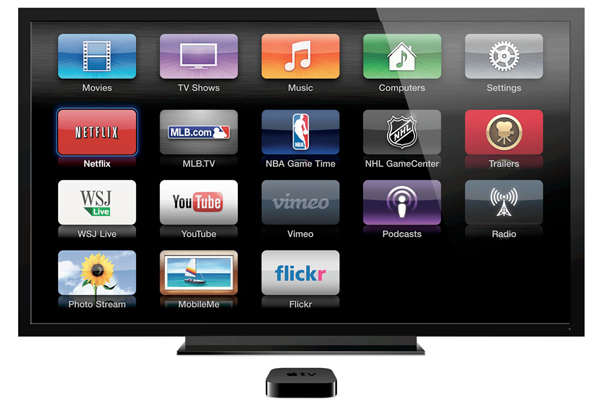
Hiding Apple TV Channels
In the Apple TV interface go to Settings > General > Parental Controls
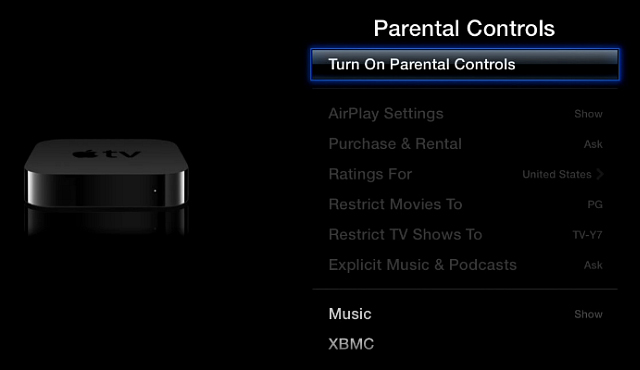
You need not turn on the Parental Controls feature just to hide channels. Scroll down for the list of channel names. Go for the channels you want to hide individually, select them and change to Show to Hide.

After you are done with the channels you want to hide, your main screen will have a cleaner interface. For example here I have hid everything except for the ones I care about.
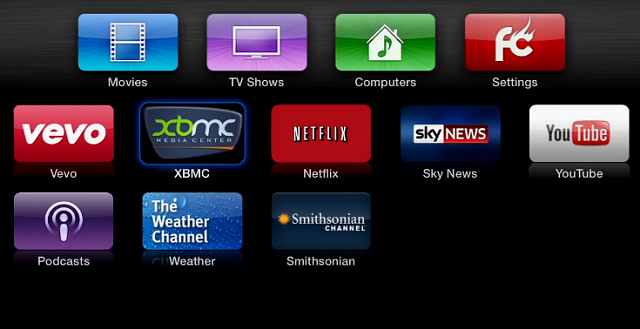
You may also rearrange the order of your channel. All you need to do is to select a channel, hold down the home button until it wiggles, then move them around in the way you want to. It is similar to the way you do on your iPhone or iPad.
If you ask me, I prefer my Roku 3 because it offers a lot more channel and with the new Roku interface managing channels is made easier. Well, Apple TV is actually turning into a mess and cleaning up seems rather tiresome and boring.
What are your say on this? Leave us a comment here.

Akshay Agarwal
Latest posts by Akshay Agarwal (see all)
- Indian Funky Nightwear Brand for Babies and Kids Online - November 11, 2020
- Children’s Boutique Clothing Manufacturers in India - September 25, 2020
- Kids Celebrity Designer – Aastha Agarwal to showcase her collection at India Kids Fashion Week in Jaipur - September 7, 2019